Google Meet
- 4.4
- Rating
- 10.00B
- Installs
- Free
- Price

 Analysis by App-foxy
I use video calling when a message is too thin and meeting in person is not practical, so I spent time with Google Meet in that everyday space between a quick phone call and a full online meeting. It is a communication app from Google LLC, available free of charge, and its reach is hard to ignore: it has passed ten billion installs and holds a 4.4 average from around twelve million ratings. Those figures suggest familiarity, but they do not automatically make every call comfortable. My experience is that its biggest strength is dependable access across phones, tablets, browsers, and Google Nest devices, while its weaker side appears when a conversation needs very careful control, simple explanations, or support for people who find video interfaces tiring.
The app is aimed at everyone rather than a narrow professional audience, and that matters. A family member can join from a phone, a student can use a tablet, and someone working at a computer can stay in a browser. I found that flexibility more useful than a long list of advanced controls. You do not need everyone to own the same kind of device, which removes one of the first obstacles in a mixed group. Still, the experience depends on the person hosting the call, the device being used, and how comfortable each participant is with permissions, cameras, microphones, and changing screens.
How Google Meet feels to use in real situations
I find that Google Meet’s strongest real-world quality is how easily a call can fit around people’s different devices and routines. In this section, I’ll look at the small choices that make a family check-in or everyday conversation smoother, including how to reduce setup stress before anyone joins. That practical routine matters more than trying to make every call feel like a formal meeting.
You May Also Like

 AccuWeather: Weather Radar
AccuWeather Review: A Quick, Clear Forecast for Everyday Decisions
For everyday plans, the best forecast is the one you can understand quickly. AccuWeather makes rain timing, radar, and local conditions easy to act on, with a few trade-offs.

 Hill Climb Racing
Why Hill Climb Racing Still Turns Crashes Into One More Run
A tiny car, a bumpy hill and one more upgrade: Hill Climb Racing keeps resurfacing because its simple chaos makes every near-miss feel personal.

 AliExpress - Shopping App
AliExpress Makes Global Shopping Feel Personal, but Shoppers Bear the Risk
AliExpress turns a global marketplace into a pocket-sized discovery engine. Its reach is useful, its shopping loop compelling, and its trade-offs easy to miss.

 Lords Mobile: Kingdom Wars
Lords Mobile Is a Kingdom-Building Routine, Not a Quick Match
A case-by-case verdict on the building, battles, device demands, and social commitments that make Lords Mobile rewarding for some players and exhausting for others.

 PDF Scanner app - TapScanner
TapScanner Makes Paperwork Easier to Capture, Check, and Share
TapScanner makes scanning with a phone feel less like a rescue operation and more like a dependable step in getting work done. Its capture tools are useful, though not flawless.

 Block Blast!
Block Blast! Shows How Much a Puzzle Game Can Leave Out
A quiet grid game shows why puzzle players increasingly value instant clarity, repeatable skill and low-pressure play—and where the genre still needs to catch up.
More From Our News Desk
View All News


Readability and navigation that favor familiar Google users
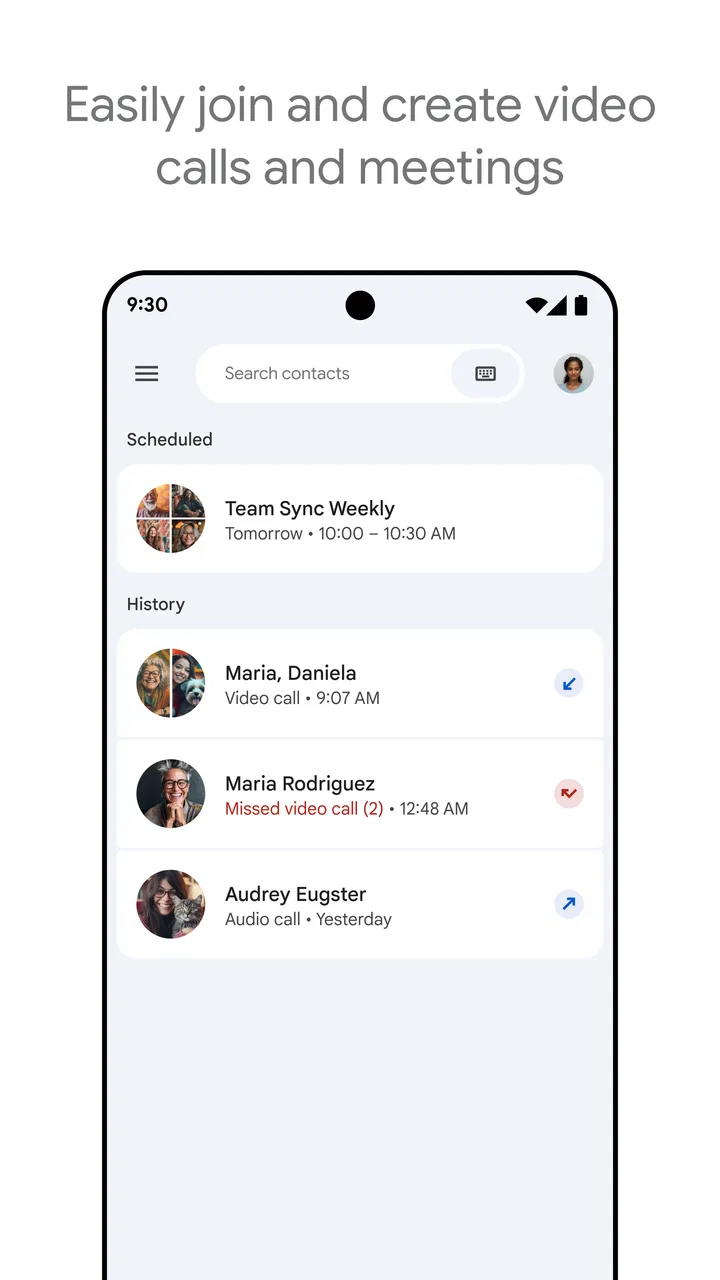
The first thing I noticed is that the basic route into a call is easier when I already understand Google’s account-based way of working. The main actions are recognizable: joining, starting, muting, switching the camera, and leaving. That makes the app approachable for a casual call, especially when the person inviting you has already explained what to tap. The interface does not feel like a specialist broadcast tool, and I would be comfortable recommending it to a relative who only needs occasional face-to-face contact.
That simplicity has a limit. Video-call controls often change depending on whether I am joining from a phone, tablet, web browser, or another connected device. A button that feels obvious on a large screen can be less comfortable to find on a small phone, particularly when the call view is busy. Someone with reduced vision may need a larger display or system-level text and magnification settings to make the controls easier to inspect. I would test those settings before relying on the app for an important appointment rather than assuming the default layout will suit everyone.
For readability, the strongest practical choice is often not inside the app at all: use the device that gives the participant the clearest view. A tablet can make faces and controls easier to distinguish than a phone, while a computer browser can reduce the need to hold a device. I also recommend setting up the call before the conversation begins. Checking the microphone, camera, and speaker in advance avoids forcing a participant to solve several visual and technical problems while other people are waiting.
One useful habit is to give invitations plain-language instructions instead of sending only a meeting address. I would write something like “open this, choose join, and allow the microphone if you want to speak.” That small step makes a real difference for older users, people who are anxious about technology, and anyone joining from an unfamiliar device. The app can be straightforward once the route is known, but it does not remove the need for a human guide.
Motor and sensory needs change the best way to participate
For people with limited hand movement, the main advantage is that a conversation can happen without travel or complicated physical setup. A phone or tablet can be placed on a stand, so the participant does not need to hold it throughout the call. That is more than a comfort detail: reducing the need to grip, aim, and repeatedly adjust a device can make a long conversation possible where a handheld call would be exhausting.
I would still plan the physical arrangement carefully. A stable stand, a reachable mute control, and a power source nearby can prevent unnecessary movement. If the participant cannot easily tap small controls, another person can help start the call and leave the participant with a mostly hands-free conversation. This is a realistic strength of video calling, but it is also a reminder that the app alone is not the whole accessibility solution. The furniture, device position, and assistance available at home matter just as much.
Video is not automatically better for every sensory preference. A person who is sensitive to visual movement may prefer to keep the camera off, and someone who finds several faces distracting may need a quieter layout or a voice-first approach. I like that a participant can choose not to be on camera, because showing a face should not be treated as the price of joining a conversation. On the other hand, turning video off removes facial cues that can help people who communicate visually, so the group should agree on what works rather than treating one format as universally inclusive.
Hearing needs also deserve a practical conversation before the call. I would not assume that seeing a face makes speech easy to follow. Background noise, distance from the device, unclear speakers, and overlapping conversation can still create fatigue. A participant who relies on visual information may benefit when everyone speaks one at a time and keeps their face visible when possible. If a call is important, I would also prepare a backup way to exchange key information, such as sending the essential details in writing afterward. That is a workflow improvement, not a promise that every spoken exchange will be equally accessible.
Situational access is where the app earns its place
My favorite use case is a family check-in where people are spread across different rooms and devices. One person may join from a phone, another from a tablet, and a third from a computer. The value is not a flashy effect; it is the reduced pressure to coordinate hardware. A relative who cannot travel can still see everyone, and a participant who is more comfortable with a browser does not have to learn a mobile interface.
I also see a clear benefit for people whose circumstances change from day to day. Someone working from home may move between a laptop and a phone. A caregiver may need to join from a quieter room rather than a dedicated office. A person recovering from illness may prefer a short visual conversation without the effort of going out. In these cases, the cross-device design makes participation more realistic. The app is especially useful when the goal is connection rather than a complex presentation.
Google Meet is less convincing when the situation demands a carefully managed public event or a highly structured collaboration space. For a small conversation, its directness is a benefit. For a group that needs extensive moderation, detailed shared workspaces, or a workflow built around another communication platform, a different service may fit better. I would choose it when participants already live comfortably in Google’s ecosystem and need a call, not when the call is only one part of a larger project-management system.
There is also a social accessibility question. Some people can join a video call but cannot stay focused through a long sequence of faces and interruptions. I get better results by agreeing on an agenda, keeping the call focused, and allowing people to leave their camera off when visual presence is not necessary. A short, purposeful meeting can be more inclusive than a technically capable call that runs on without structure.
Small workflows make a noticeable difference
One non-obvious lesson from using the app is that the host should treat the first minute as setup time, not wasted time. I check who can hear, ask whether the picture is useful, and explain how people should signal that they want to speak. This is particularly helpful when one participant has difficulty interrupting or cannot comfortably reach the mute control. A simple speaking order can make the conversation easier to follow than any interface adjustment.
Another useful approach is to separate participation from presentation. If someone has a small screen, limited data, or visual fatigue, they may be better served by joining mainly to listen and receiving important material separately. I would not force every participant to keep video active just because the app supports it. This makes the call less demanding and can help people take part from places where showing their surroundings is uncomfortable.
For recurring calls, I would keep the joining instructions consistent. Use the same wording, identify the expected device, and tell people what to do if the microphone is not working. Familiar repetition reduces cognitive load. It also helps a support person troubleshoot without asking the participant to describe every control on the screen. The app becomes easier when the surrounding routine is designed well.
A final practical tip is to avoid placing the device where light, noise, or movement competes with the conversation. A face near a bright window may be difficult to see, while a phone resting on a noisy surface can make speech harder to understand. These are ordinary environmental problems, but they often get blamed on the application. Good positioning cannot fix every limitation, yet it improves the experience immediately and costs nothing.
Where the experience still creates barriers
The biggest barrier is not the call itself; it is the preparation around it. A participant may need an account, a suitable device, a stable connection, and enough confidence to handle the join screen. Even when the app is free, those requirements are not free in practice. A person with an older device, limited connectivity, or little technical support may find the service less welcoming than the word “free” suggests.
Account and invitation routines can also be confusing for people who do not regularly use Google services. I would be careful when inviting someone who is not technically confident: send the invitation early, offer a test call, and explain that they can ask for help without feeling they have failed. If the meeting is urgent, I would not make this the only communication route. A normal phone call may be the more inclusive fallback for a participant who cannot manage the video setup.
Video can expose private surroundings, which is another form of access rather than a minor preference. Someone may live in a crowded home, share a room, or simply not want to appear on camera. Asking for video without considering that context can exclude people socially even if the software allows them to join. I prefer to make camera use optional unless seeing faces is genuinely necessary for the purpose of the call.
There is a trade-off with visual communication too. People who depend on facial expression or lip visibility may find a noisy, poorly lit, or low-quality call tiring. Meanwhile, people who struggle with visual overload may find a grid of faces demanding. The best arrangement depends on the participant, so I would ask rather than guess. If the group cannot adapt its speaking habits, the app’s technical convenience will not solve the human problem.
Compared with a traditional phone call, Google Meet offers richer visual connection but requires more setup and can be more demanding on attention. Compared with a messaging app, it is better for live conversation but less convenient when people need to respond at different times. Compared with workplace-focused meeting tools, it feels lighter and more approachable for ordinary calls, though it may be a weaker choice for teams that need a broad set of specialized collaboration controls. I would choose based on the conversation’s purpose, not on popularity alone.
Who should use it, and who may prefer something else?
I think it suits families, tutors, small community groups, remote workers, and anyone who regularly speaks with people using different devices. It is also a sensible choice for a person who wants a familiar Google-based route to video calling without paying for the app. The Everyone age rating makes it broadly approachable, although a responsible adult should still help younger or inexperienced users understand who they are calling and how to protect their privacy.
I would recommend it most strongly when the call is personal, direct, and reasonably short. It works well for checking in with a relative, discussing a simple task, or attending a conversation from home when travel is difficult. The app’s history also shows that it is not a new experiment: it was released on August 16, 2016, and has become a widely recognized communication option. Familiarity can reduce friction when several people need to join quickly.
I would hesitate to make it the only option for someone with severe hearing or vision barriers unless the whole group has tested the setup and agreed on supportive habits. I would also look elsewhere for a user who dislikes accounts, struggles with changing interfaces, or needs a highly specialized meeting environment. In those cases, a phone call, a text-based service, or another meeting platform may be kinder and more practical.
My inclusive verdict after using it
Google Meet succeeds because it brings a video conversation to many kinds of screens without asking users to buy the app. Its cross-device reach, familiar basic controls, and low barrier to starting a call make it a strong everyday choice. I especially value the way it can connect people who cannot travel, who are working from different places, or who need to participate from a device already within reach.
My recommendation comes with a condition: inclusive video calling depends on the surrounding routine as much as the software. Give people clear joining instructions, allow camera-free participation, speak one at a time, check sound before beginning, and keep a non-video fallback available. Those steps address barriers that a clean interface cannot remove on its own.
As a free communication app from Google LLC, it is easy to try and broad enough for most ordinary conversations. Its 4.4 average and more than ten billion installs reflect exceptional adoption, while the roughly seven hundred thousand written reviews show that many users have taken the time to discuss their experience. I see those figures as evidence of reach rather than a guarantee of perfect accessibility.
My final view is positive but practical. I would recommend it to a friend who wants straightforward video contact across Android, iOS, tablets, Google Nest, and the web, especially when the participants can help one another with setup. I would not present it as the right answer for every ability or context. Used with flexible camera expectations, thoughtful pacing, and a backup channel, Google Meet can make remote conversation feel genuinely available instead of merely technically possible.
FAQs for Google Meet
01What devices are compatible with Google Meet?
Google Meet is compatible with a wide range of devices, including smartphones, tablets, and computers. It works on both Android and iOS devices, as well as Windows, macOS, and Linux operating systems. For the best experience, ensure your device is updated to the latest software version and has a compatible web browser.
02Is there a limit to the number of participants in a Google Meet call?
Yes, the number of participants you can have in a Google Meet call depends on your Google Workspace plan. For free accounts, the limit is typically 100 participants. For paid plans like Google Workspace Essentials or Enterprise, the limit can increase to 250 participants, accommodating larger meetings.
03How secure is Google Meet for video conferencing?
Google Meet is designed with security in mind. Video meetings are encrypted in transit, and various security measures are in place to prevent unauthorized access. Features like two-step verification and robust access controls help ensure that only invited participants can join your meetings, keeping your conversations private.
04Can I record meetings on Google Meet?
Recording meetings is a feature available to Google Workspace subscribers. When a meeting is recorded, participants are notified, and the recording is stored securely in Google Drive. This feature is useful for keeping a record of important meetings or sharing with those who couldn’t attend live sessions.
05What are some key features of Google Meet?
Google Meet offers various features to enhance your video conferencing experience, including screen sharing, real-time captions, and integration with Google Calendar for easy scheduling. It also supports various view layouts, such as tiled and spotlight, to improve meeting engagement and focus on active speakers.
Pros
- Easy integration with Google Calendar.
- Supports up to 100 participants for free.
- High-quality video and audio.
- Screen sharing with real-time collaboration.
- User-friendly interface with simple controls.
Cons
- Limited features in free version.
- Requires Google account to use.
- Occasional connectivity issues.
- No built-in recording option in free tier.
- Lacks advanced webinar features.

Google Meet
Gallery